Giving An Agent Documents
What is this screen for?
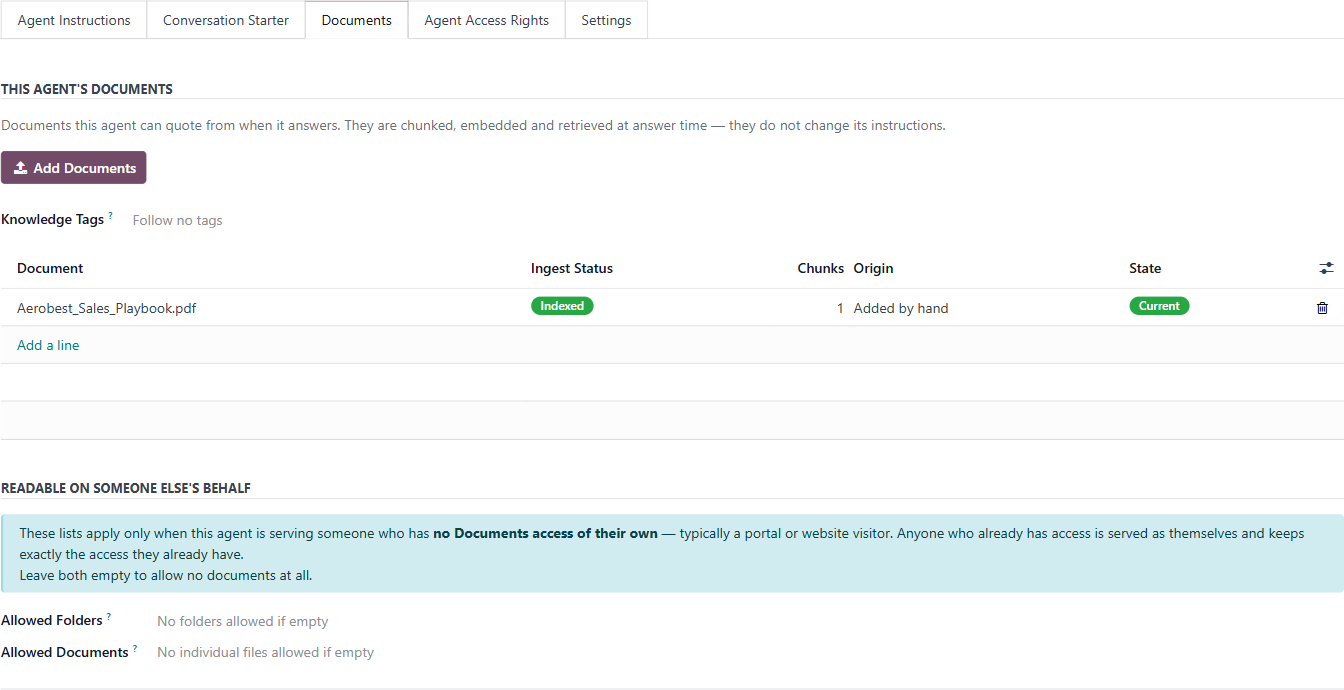
The Documents tab is where you give an agent knowledge it can quote from when answering, and where you control what it can read on behalf of users who have no Documents access of their own.
Who uses it?
Administrators at your organization.
What do you actually do here?
This tab has two separate sections. They do different things.
⚠ If the "Provision this agent first" banner appears at the top of this tab, you must provision the agent first (see Agents, and the agent form) before you can add any documents.
This Agent's Documents
These are the files the agent can draw from when answering questions. Documents are chunked, embedded, and retrieved at answer time — they do not change the agent's instructions.
⚠ Only PDF files can be indexed for agent knowledge. A Word, PowerPoint, Excel, or image file will upload successfully and appear in the Odoo Documents app, but it is never added to the agent's knowledge and the agent will not quote from it. The upload confirmation tells you how many files were skipped and why. Linked documents (a URL rather than a file) are also skipped.
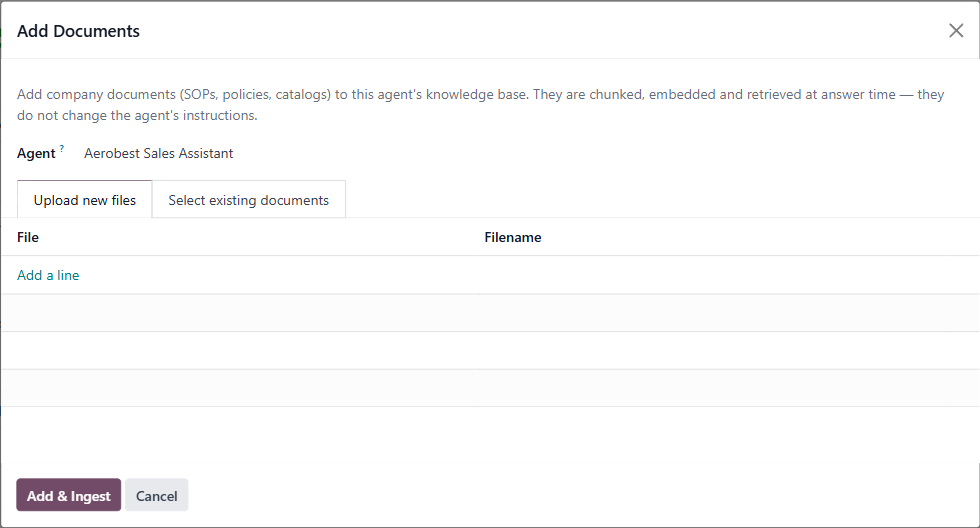
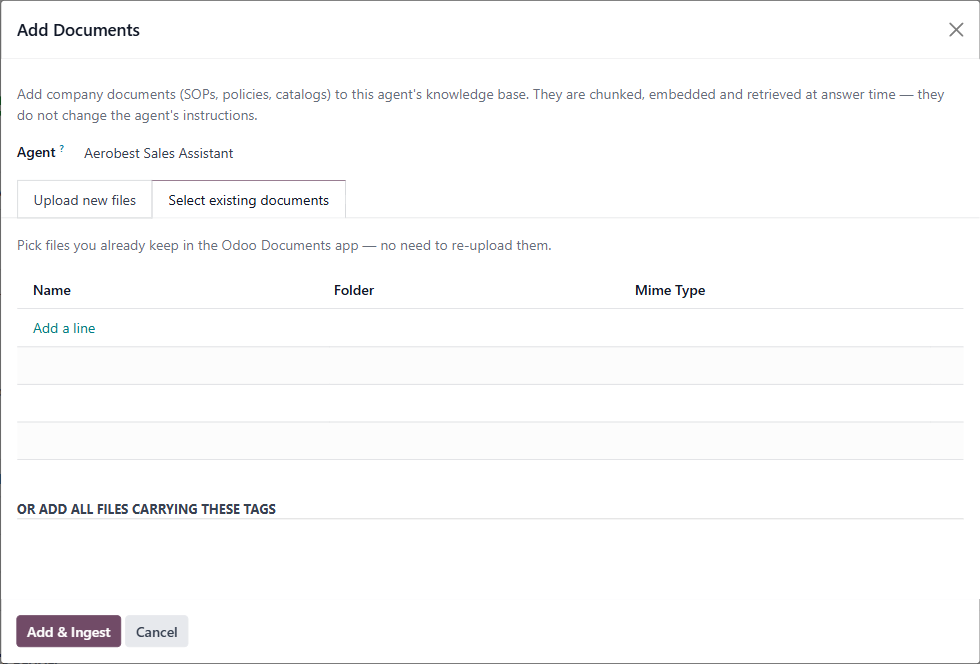
There are three ways to add documents. The first two are in the Add Documents modal:
- Upload new files — Upload a file directly from your computer. Click Add a line, attach the file, then click Add & Ingest.
- Select existing documents — Pick files that already exist in your Odoo Documents app by name, folder, or file type. No need to re-upload. The tag option on this tab is a one-off: it adds the files carrying that tag at that moment.
- Subscribe via tag — This one is not in the modal. Choose the tag in the Knowledge Tags field on this tab and save. Every PDF carrying the tag is added straight away, files tagged later are added within half an hour, and a file that loses the tag is taken out again.
Once added, the document table shows:
Document — the file name.
Ingest Status — whether the file has been processed and is ready for the agent to use. Values: Ingesting (being processed — a newly added file starts here), Indexed (complete and available), Failed (did not complete — check the error), Needs OCR (processing found no text in the file, typically a scan — supply a text-based PDF instead), Validated (accepted — appears only on documents supplied by Wiz Asia), Stale (Wiz Asia has since issued a newer version — appears only on Wiz Asia documents).
Chunks — how many pieces the document was split into for retrieval.
Origin — "Added by hand" or "Tag subscription."
State — "Current" (in use), "Removed" (this agent no longer uses it: the attempt failed, or the file lost the tag it came in with; it can be added again) or "Excluded" (taken out with the bin icon on this tab or with Remove from agents; a tag subscription will not add it back until someone adds it with Add Documents). Either way the document itself still exists, and other agents may still use it. If a removal cannot be confirmed, you are told and the document stays Current; try again in a few minutes.
The Knowledge Tags field is where you subscribe the agent to tags, and shows which tags it follows. Only tag-sourced documents are withdrawn when a tag stops matching. A file added by hand stays until someone removes it manually.
Readable on Someone Else's Behalf
This section only applies when the agent serves someone who has no Documents access of their own — typically a portal user or website visitor. Internal staff who already have their own access are unaffected.
Allowed Folders — which document folders the agent may open on behalf of these users.
Allowed Documents — which individual files the agent may access.
ℹ If both are left empty, the agent cannot read any documents on behalf of users without access. This is the safe default.
ℹ When the agent opens a document through this mechanism, it reads a wider range of formats than the knowledge base above — including Word, Excel, PowerPoint, and Odoo spreadsheets. The PDF-only limit does not apply here.
What do you do when it looks wrong or empty?
Document list is empty: No documents have been added yet. Click Add Documents to start. This is normal for a newly created agent.
Ingest Status not showing "Indexed": The document may still be processing, or ingestion may have failed. Check the Ingestion Log for error details. If the status shows "Needs OCR," no text was found in the file, typically because it is a scan — do not wait for it. Supply a text-based PDF instead.
Documents show "Removed" or "Excluded" state: "Removed" usually means that attempt failed or the file lost its tag; "Excluded" means someone took it out, with the bin icon or Remove from agents. If unintentional, re-add it from the Add Documents modal.
Subscribed to a tag but new files aren't appearing: Confirm that the new file in Odoo Documents actually carries the exact tag the agent follows. Tags are matched as records, not as raw text. Also check that it is a PDF: other formats are only counted under Unreadable Matches. A newly tagged file is picked up within half an hour. A file someone took out stays out, and a file that failed five times in a row is no longer retried automatically (the agent's chatter says so); add either one with Add Documents.
Unsure what to set in Allowed Folders / Allowed Documents: If your agent only serves internal staff, leave both empty — these fields have no effect for users who already have Documents access.