The Helper's Knowledge Base
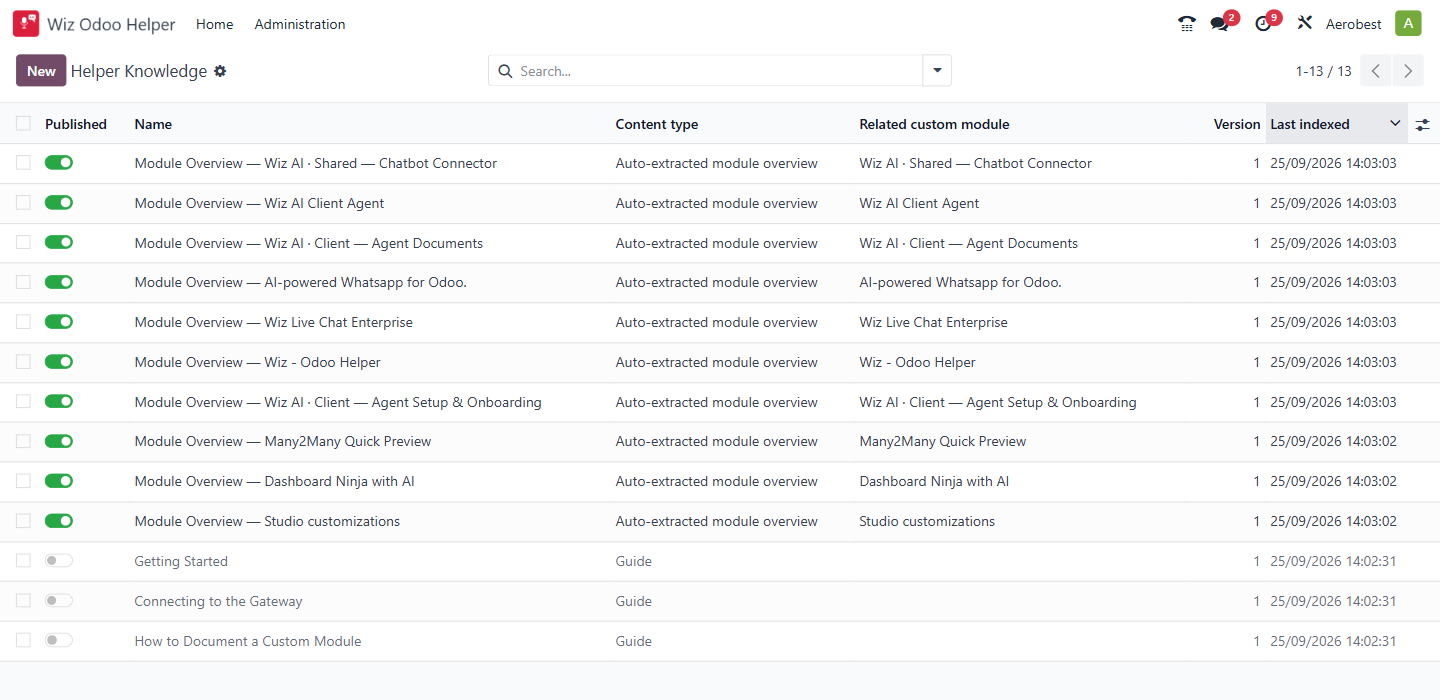
1. What is this screen for?
The Knowledge Base (Administration → Helper Knowledge in the menu) lists every document the Helper uses to answer questions about your setup — automatically extracted descriptions of custom modules, plus documents written by hand.
A document is only used by the Helper when it is Published and not archived. Both conditions must be met.
2. Who uses it?
Administrators at your organization.
3. What do you actually do here?
The list shows one row per document with these columns:
Published — a toggle. Green (on) means the document is published and active — the Helper will use it. Grey (off) means it is a draft — the Helper will not use it. Draft rows appear greyed out in the list so you can spot them at a glance.
Name — the document title. Auto-extracted documents follow the pattern "Module Overview — [module name]." Hand-written documents have titles chosen by the author.
Content type — what kind of document it is: "Auto-extracted module overview" for the ones the system generates from a custom module; Overview, Process, Policy, FAQ, Troubleshooting or Guide for documents people add.
Related custom module — which custom module the document describes. Optional on documents people add.
Version — the document version number.
Last indexed — when the document was created or last edited.
The list is sorted by Last indexed (most recent first). Three kinds of documents appear:
• Auto-extracted module overviews — generated automatically when Auto-extract custom modules is ticked in Configuration. One per custom module installed in your database. These are published by default (green toggle).
• Hand-written guides — created manually by clicking New or via the Create Knowledge Draft action from Unanswered Questions. These start as drafts (grey toggle) until you publish them.
• Starter guides — three drafts shipped with the Helper (Getting Started, How to Document a Custom Module, Connecting to the Gateway), in the Templates folder. The Helper does not use them unless you publish them.
To find archived documents, use the search bar and add the Archived filter.
Finding an archived document
Archived is a filter in the search dropdown, not a separate toggle or a button on the list. Click the search bar, open Filters, and choose Archived. It sits below the Published / Drafts pair and the Auto-extracted / Manual pair, after a divider.
Turning it on shows documents that have been archived. Without it an archived document cannot be reached at all — not even to discover that it was archived — which is why this is the first place to look when a document has disappeared from the list.
Click New to create a new document manually.
Adding and publishing a document
To add a new knowledge document:
• Click New and upload the file under Document: a text, Markdown or text-based PDF file (Word, Excel and PowerPoint files are not read). The title takes the file name; change it if needed.
• Save the record. It starts as a draft — the Published toggle is grey (off) and the Helper will not use it.
• When the content is ready, switch the Published toggle to green (on). The Helper can now use this document to answer questions.
To unpublish a document without deleting it, switch the toggle back to grey. Searches stop finding it at once, though a Helper session that is already open may still use it until a new session starts.
4. What do you do when it looks wrong or empty?
List is empty: The Helper has no knowledge documents. If Auto-extract custom modules is ticked in Configuration, module overviews should appear automatically. If they don't, check that Auto-extract custom modules is ticked on the Configuration screen; the job runs once a day and does not need the connection.
A document is published but the Helper still can't answer questions about it: Check that the document is not archived. A document must be both Published (green toggle) and not archived to be used. Use the Archived filter to check.
Auto-extracted overviews are missing for a module: Check that the module is not listed in "Modules to exclude from auto-extract" under Administration → Configuration. Auto-extraction runs once a day, producing one overview per installed custom module. If the module was recently installed, the overview appears after the next run.
Hand-written guides appear greyed out: They are in draft status. Toggle the Published switch to green to make them available to the Helper.
You archived a document by mistake: Use the Archived filter in the search bar to find it, then unarchive it.