Template Updates
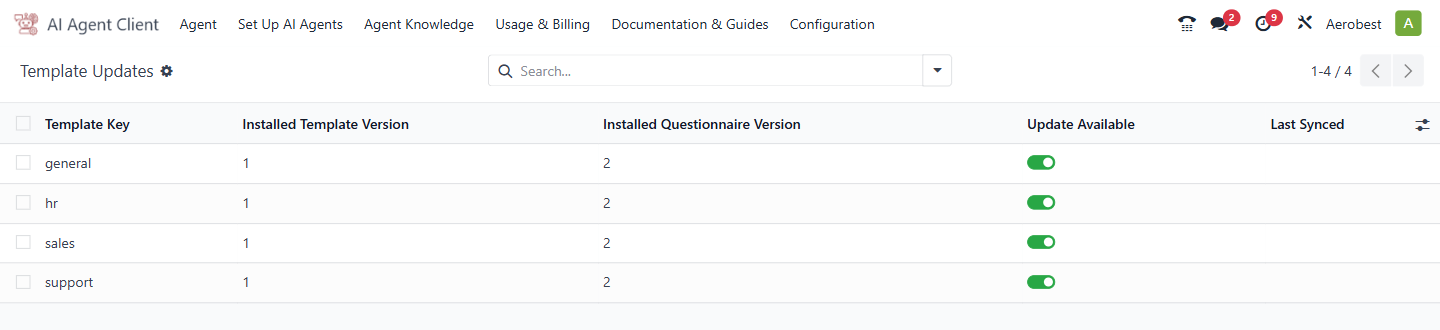
1. What is this screen for?
The Template Updates screen shows which ready-made agent templates this database has installed, whether newer versions are available from Wiz Asia, and lets you pull updates.
2. Who uses it?
Administrators at your organization.
3. What do you actually do here?
The table shows one row per template with these columns:
Template Key — the identifier for this template (e.g., "hr," "sales," "support").
Installed Template Version — the version of the agent template currently installed.
Installed Questionnaire Version — the version of the setup questionnaire currently installed.
Update Available — whether a newer version is available from Wiz Asia.
Last Synced — when Apply Updates last installed it. It stays empty after a check alone.
The three actions that drive this screen are not on the page itself — they sit beside it as their own menu items under Configuration → Maintenance. Each one acts on every template, whatever this list happens to show or you happen to have selected:
Check for Updates — asks Wiz Asia what has changed since your last sync.
Apply Updates — pulls the new template definitions, questions, and default documents into this database.
The third action is kept separate on purpose:
Update Provisioned Agents — refreshes the template-supplied instruction sections on agents that are already live. Choosing it opens a confirmation first, which tells you how many live agents are in range before anything is written. It is the only one of the three that reaches agents already serving.
Warning: Update Provisioned Agents refreshes the template-supplied instruction sections on live agents. Text you wrote yourself in any section is preserved. The one caveat: if a section existed in an older template version but no longer exists in the new one, that section is cleared.
4. What do you do when it looks wrong or empty?
“No templates synced yet”: this is what the page shows before the first sync, and it is normal on a new database. Go to Configuration → Maintenance → Check for Updates to ask Wiz Asia what is available, then Apply Updates to pull it in. The list fills in once a check has run.
Update Available is switched on: Click Apply Updates to download the latest template definitions. This does not change any live agent's instructions — it only updates the templates available for new setups. If a Wiz Asia default document has a new version, the old one is taken out of your agents; add the new one with Sync Default Docs on each agent's Documents tab.
You updated templates but your live agents didn't change: Template updates only affect new agents created from those templates. To apply updates to existing live agents, use Update Provisioned Agents — but read the warning above first.