Message History & Costs
1. What is this screen for?
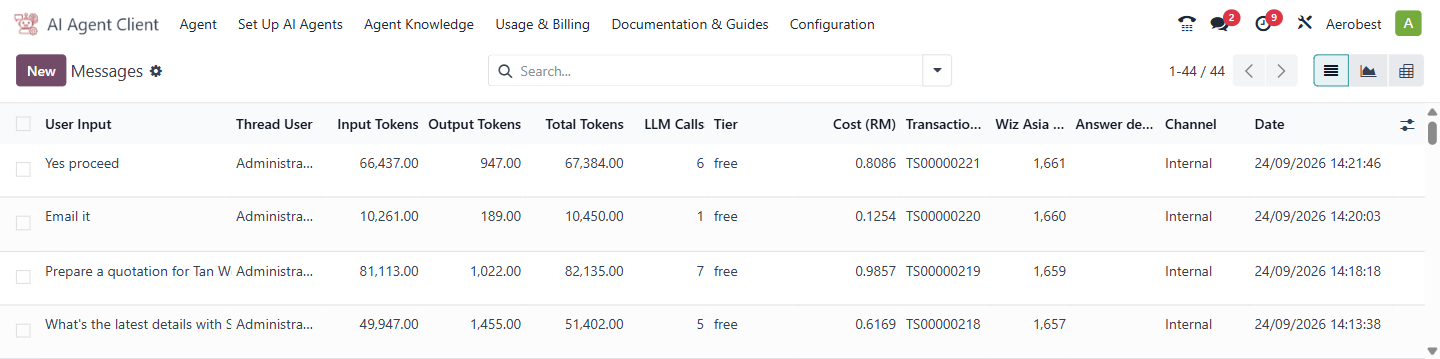
The Messages screen logs every message exchanged between users and AI agents — what was asked, what was answered, how much it cost, and which channel it came through. It is the usage and billing audit trail.
2. Who uses it?
Administrators at your organization.
3. What do you actually do here?
The list view shows one row per message with these columns:
User Input — the text the user sent to the agent.
Thread User — the user who sent the message. Website and WhatsApp visitors are listed under Odoo's public user.
Input Tokens — tokens used to send the message to the AI.
Output Tokens — tokens used by the AI to generate a response.
Total Tokens — combined input and output.
LLM Calls — how many calls to the AI model this message required.
Tier — the billing tier for this message (e.g., "starter").
Cost (RM) — the cost of this message in Malaysian Ringgit.
Channel — where the conversation happened: Internal, Website, WhatsApp, or AI Studio (usage from the Wiz Odoo Helper — this is the row that lets you reconcile Helper spend against the shared wallet shown on the Wallet & Plan screen).
Date — when the message was sent.
Transaction ID and Wiz Asia Msg # — the wallet debit and the message number on the Wiz Asia side. Quote the Wiz Asia Msg #, shown as Billing reference in the detail view, when you raise a billing query.
Answer delivery — blank is normal: it means the answer was delivered by the chat itself, which is the usual case. "Not delivered" is the one that matters — it means the customer was charged for an answer they never received. If you see "Not delivered," raise it with help@wiz.asia.
Click any row to open the message detail view:
Message Detail View
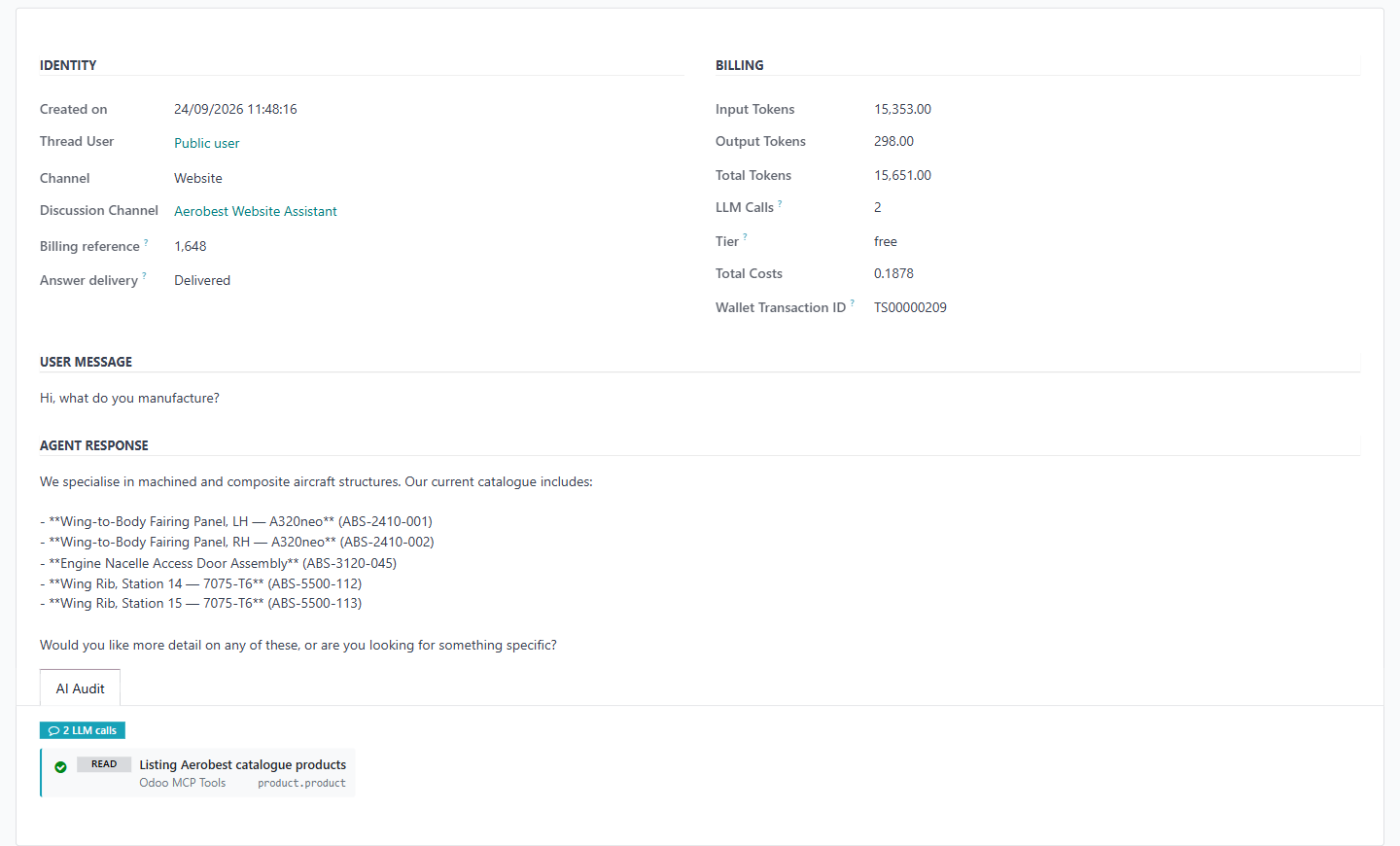
The detail view shows the full conversation (User Message and Agent Response) plus the complete billing breakdown including Input Tokens, Output Tokens, Total Tokens, LLM Calls, Tier, Total Costs, and Wallet Transaction ID (the ID of the wallet debit on the Wiz Asia side — effectively the receipt for that message's cost, useful when raising a billing query).
AI Audit
When an agent accesses Odoo records to produce its answer, the message detail view includes an AI Audit section showing what the agent did: how many AI calls it made, which tools it used, and which kind of record each tool worked on, with links to the records where available. It does not copy what the agent read: for records it changed it names the fields, and for records it created it shows up to three of the values it set. This is the evidence trail for that specific response.
The AI Audit tab is hidden entirely unless the agent used tools or made an LLM call for that message. When shown, it lists the tools the agent used and the records they worked on. The tab simply does not appear when there is nothing to audit.
4. What do you do when it looks wrong or empty?
List is empty: No messages have been exchanged with any agent yet. This is normal for a freshly installed system.
Messages show 0 tokens and 0 cost: This list holds only messages the AI service processed and billed, so a message that never reached it is not listed. If a row shows 0 tokens and 0 cost, quote its Wiz Asia Msg # to help@wiz.asia.
Thread User shows Public user: The message came from a website or WhatsApp visitor. This is expected, not an error. A blank Thread User means the message could not be matched to a user in this database.
Costs seem unexpectedly high: Review the Token and LLM Calls columns. Messages with high token counts or multiple LLM calls cost more. Long conversations or queries requiring the agent to search through many documents will use more tokens.