1. What is this screen for?
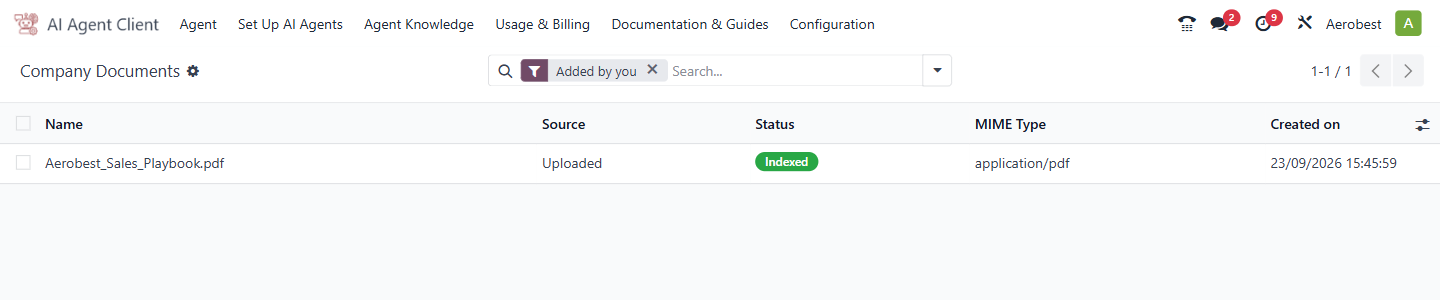
The Company Documents screen (Agent Knowledge → Documents in the menu) is a central list of every document that has been added to any agent's knowledge base. It is a read-only overview — documents are added from each agent's Documents tab, not from here.
2. Who uses it?
Administrators at your organization.
3. What do you actually do here?
This screen shows all knowledge documents across all agents in one place. The columns are:
Name — the file name.
Source — how the document was added: "Central default" (supplied by Wiz Asia as part of a template) or "Uploaded" (added by your organization, by hand or through a tag subscription). "Tag subscription" is not a Source value — it appears in the Origin column on the agent's Documents tab.
Status — the ingestion result. A green Indexed badge means the document was processed successfully. A red Failed badge means ingestion did not complete.
MIME Type — the file format (e.g., "application/pdf").
Created on — the date and time the document was added.
The search bar supports filters. The filter "Added by you" is active by default. It shows every document your organization added, by any user or through a tag subscription, and hides the ones supplied by Wiz Asia. Remove it, or pick "Provided by Wiz Asia", to see those too.
This screen is for monitoring, not for editing. You come here to answer questions like: did my upload succeed? Is a document indexed? When was it added?
Document Detail View
Click any row to open the detail view, showing the document's full metadata:
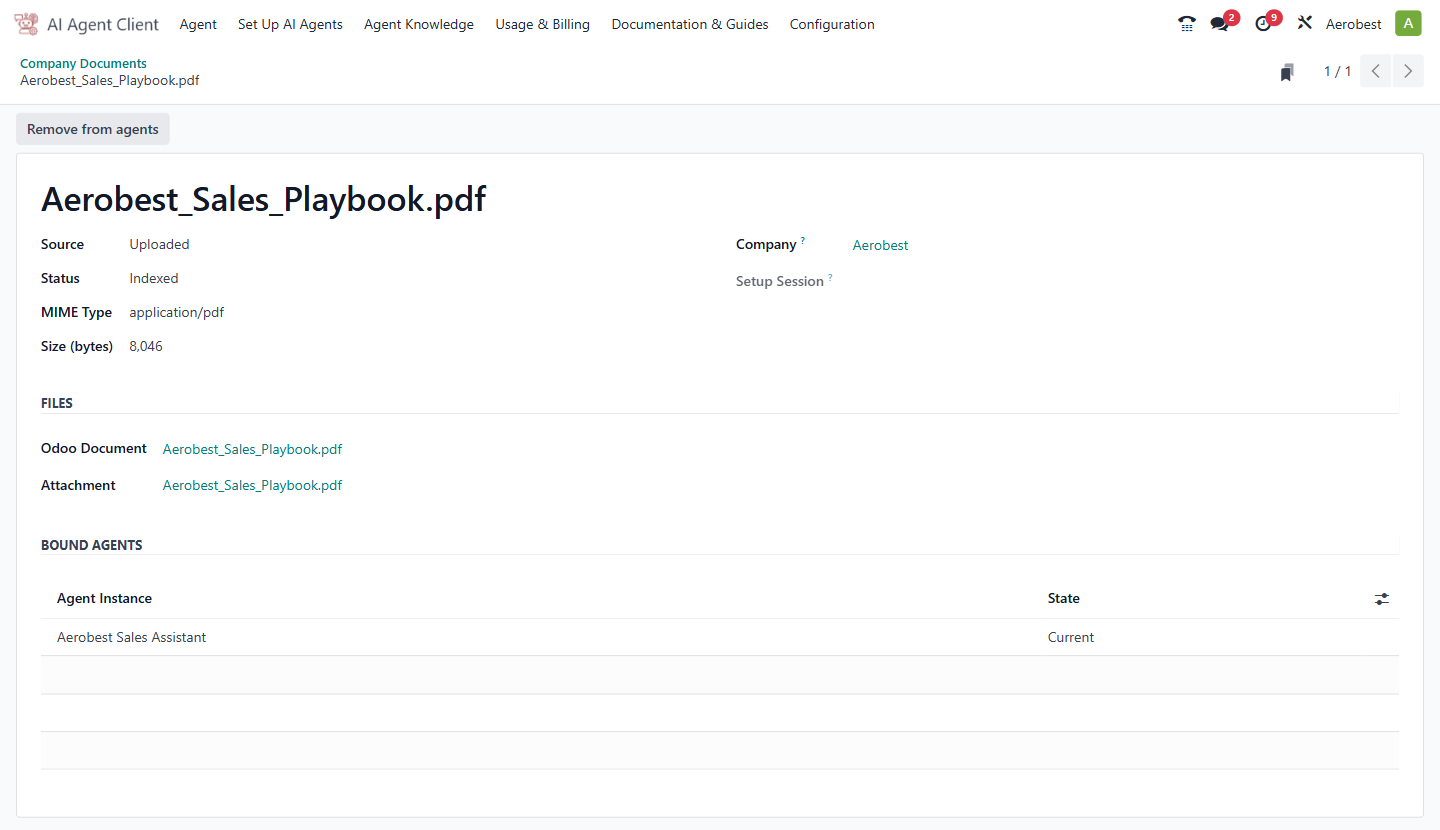
• Source, Status, MIME Type, Size, and Company.
• Links to the Odoo Document record and the raw attachment under FILES.
• A BOUND AGENTS table showing which agents this document is linked to and the state of each link. "Excluded" means it was taken out with Remove from agents or the bin icon; "Removed" means that attempt failed or the file lost its subscribed tag. Either way that agent can no longer use it, but the document itself still exists.
The Remove from agents button at the top unlinks this document from every agent using it. If an agent cannot be reached, you see "Partly removed" and that agent keeps the document; try again in a few minutes.
Remove from agents does not delete the document itself. The document remains in the system, and a tag subscription will not add it back; to use it again, add it with Add Documents.
4. What do you do when it looks wrong or empty?
A document shows "Failed" status: The file could not be processed. The Error column of the Ingestion Log, and a note in the agent's chatter, say why.
There is no retry button and nothing to remove first: a failure releases the link, so add the same file again with Add Documents (Select existing documents avoids a second upload). A file from a tag subscription is also retried automatically at each sync until it has failed five times in a row; the agent's chatter then says automatic retries have stopped.
The same document appears multiple times: each time one of your files is added to an agent, by you or by a tag subscription retrying it, it gets its own row, so a file given to two agents, or added again, is listed more than once. A document supplied by Wiz Asia is one row, with every agent using it listed under Bound Agents. Adding the same file to the same agent twice does nothing — it is recognised by its content and skipped. Each ingestion attempt also has its own row in the Ingestion Log.
List is empty: No documents have been added to any agent yet. Documents are added from each agent's Documents tab.
You expect a document but can't find it: Check whether a filter is active in the search bar. Clear all filters and search by file name.