Agent Access Rights
What is this screen for?
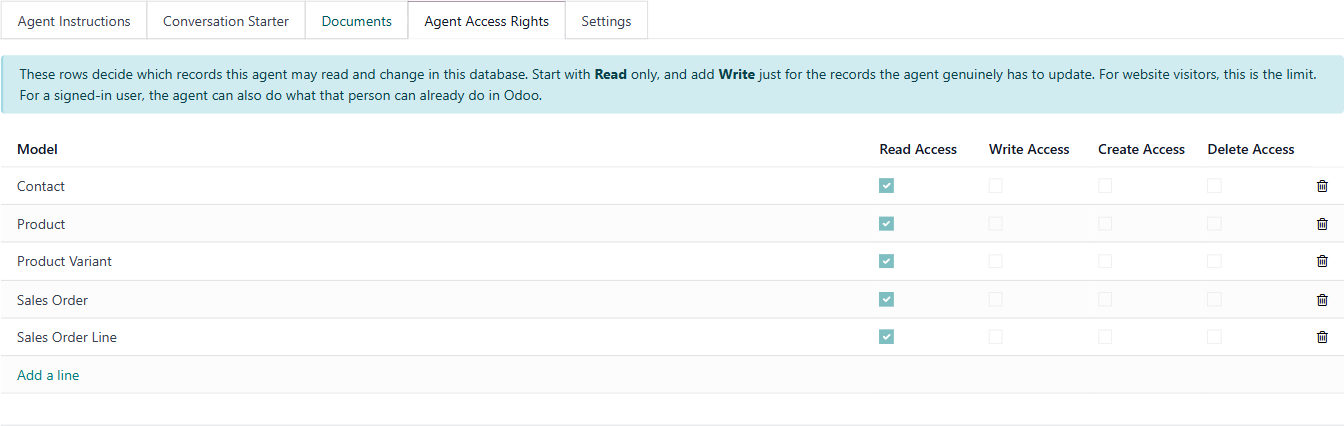
The Agent Access Rights tab controls which Odoo records the agent is allowed to read, write, create, or delete on anyone's behalf. For website visitors, who have no access of their own, what is ticked here is the limit. When the agent is serving anyone signed in, whether a member of staff or a portal user, it can also do whatever that person can already do in Odoo: the table adds to their own access, it does not reduce it.
Who uses it?
Administrators at your organization.
What do you actually do here?
The banner at the top states the principle: start with Read only, and add Write just for the records the agent genuinely needs to update.
The table has five columns:
Model — the type of Odoo record (for example, "Contact," "Product," "Sales Order"). Click Add a line to add a new model.
Read Access — tick to let the agent view records of this type.
Write Access — tick to let the agent update existing records of this type.
⚠ Write access does more than allow editing fields — it also lets the agent run actions on that record type. For example, granting write access on invoices allows the agent to post them, not just change their fields.
Create Access — tick to let the agent create new records of this type.
Delete Access — tick to let the agent delete records of this type.
Each row is a permission grant. If a model is not listed, the agent can reach it only through the signed-in person's own access, which for a website visitor means not at all.
The recommended approach:
- Add only the models the agent needs for its role.
- Start with Read Access only. Test the agent. Add Write or Create only when you've confirmed the agent handles the task correctly.
- Avoid granting Delete Access unless there is a specific, justified use case.
What do you do when it looks wrong or empty?
Table is empty (no models listed): The agent has no access of its own. It can still answer from its instructions and documents. For a signed-in member of staff it can look up what that person can see themselves, but for a website visitor it cannot look up or modify live data. Click Add a line and select the relevant models.
Agent can't find records the user asks about: Check whether the correct model is listed here with Read Access ticked. If the model is missing, add it.
ℹ The "Add a line" button opens a searchable dropdown that uses user-friendly names (for example, "Sales Order" or "Contact"), not technical model names.
Agent is changing records it shouldn't: Remove Write, Create, or Delete access for that model. Review the table row by row — a single extra tick can give the agent more power than intended. If the person using the agent is a member of staff who can change those records themselves, the agent can still change them on that person's behalf, because it acts with that person's own rights.