Helper Configuration
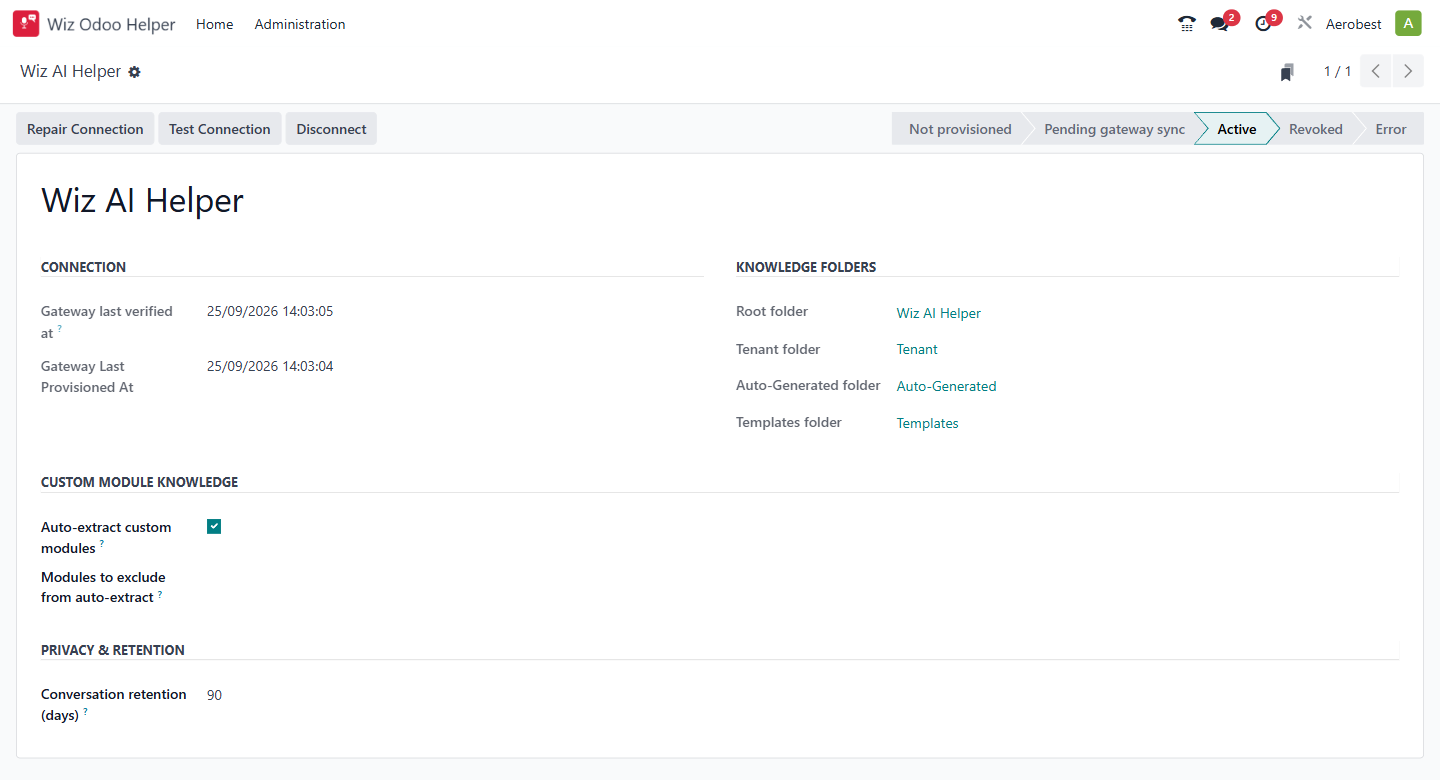
1. What is this screen for?
The Configuration screen manages the Helper's connection to the Wiz Asia AI service, shows where the Helper's documents are filed, controls whether custom modules are automatically analysed, and sets how long conversation transcripts are kept.
2. Who uses it?
Administrators at your organization.
3. What do you actually do here?
The screen has a status pipeline across the top right showing the connection lifecycle: Not provisioned → Pending gateway sync → Active → Revoked → Error.
When there is no connection key (Not provisioned, or after Disconnect), a Connect Helper button appears, with its own confirmation dialog. Once connected, three action buttons appear at the top:
Repair Connection — rotates the connection key and re-establishes the link without a full disconnect/reconnect cycle. Existing Helper sessions will reconnect automatically. Confirmation: “This will rotate the connection key. Existing Helper sessions will reconnect. Continue?”
Test Connection — checks the connection now, with no confirmation dialog. On success the status becomes Active and Gateway last verified at is updated; on failure the reason appears in a red notice and under Diagnostics, and a key the service rejects is cleared so that a new one is requested automatically.
Disconnect — revokes this database’s AI Gateway access immediately. The Helper will stop answering until reconnected. Confirmation: “This revokes this database’s AI Gateway access immediately. Continue?”
The form has four sections, plus a Diagnostics section showing the last error when a connection attempt has failed:
CONNECTION
Gateway last verified at — when the connection was last confirmed working.
Gateway Last Provisioned At — when the Helper was last set up or repaired.
KNOWLEDGE FOLDERS
These show where the Helper's documents are filed. They do not limit what it reads: every published, non-archived Helper document is used, wherever it is filed.
Root folder — the top-level folder in Odoo Documents that contains all Helper knowledge (e.g., "Wiz AI Helper").
Tenant folder — where Create Knowledge Draft puts its drafts (e.g., "Tenant"). A document added with New goes in the folder you choose on its form.
Auto-Generated folder — where the daily extraction job stores automatically generated overviews of your custom modules. The same job tidies this folder, so its contents should not be hand-edited (e.g., "Auto-Generated").
Templates folder — where ready-made Helper documents are kept. These are not the same as the agent templates managed under Template Updates in the AI Agent Client — those are synced from Wiz Asia and serve a different purpose (e.g., "Templates").
Each folder name is a link — click it to go directly to that folder in Odoo Documents.
CUSTOM MODULE KNOWLEDGE
Auto-extract custom modules — when ticked, a daily extraction job analyses your custom Odoo modules and writes overview documents into the Auto-Generated folder so the Helper can answer questions about them. Ticked by default. A separate weekly job, not affected by this tick, gives the author of a published hand-written document a "Review helper document" to-do once it has gone 90 to 365 days without an update, depending on its content type.
Modules to exclude from auto-extract — a multi-select picker of modules (it lists every module in your Apps list, installed or not). Select any modules you do not want the extraction job to cover. Leave empty to extract all custom modules.
PRIVACY & RETENTION
Conversation retention (days) — how many days conversation transcripts are kept before they are archived. Default is 90 days. A daily job archives conversations older than this threshold. Archived conversations no longer appear in Conversation Review, but they are kept, not deleted, and an Odoo administrator can restore them. A conversation its user deleted from the Helper is gone for good.
4. What do you do when it looks wrong or empty?
Status shows "Not provisioned": The Helper has no connection key yet. It normally connects by itself within about 10 minutes of the AI Agent Client's registration completing, and a copied database (such as a staging build) also starts here. To connect now, click Connect Helper.
Status shows "Revoked": Someone disconnected the Helper. Click Connect Helper to reconnect; it will not reconnect by itself.
Status shows "Error": Click Repair Connection (or Connect Helper, if that is the button shown) and read the reason under Diagnostics. If the problem persists, contact help@wiz.asia.
Test Connection fails: Read the reason in the red notice (it is also kept under Diagnostics). "Gateway unreachable" usually means outbound internet access is blocked, for example by a firewall.
Helper doesn't know about your custom modules: Check that Auto-extract custom modules is ticked and that the module is not listed in the exclusion picker. The extraction job runs daily, so a newly installed module will be picked up within 24 hours.
Conversations disappearing from Conversation Review: Check the Conversation retention (days) value. Conversations older than this are archived and will no longer appear in the list. They are kept, not deleted, and an Odoo administrator can restore them. Increase the value if you need to keep them visible longer.
Knowledge Folders show wrong or missing folders: These are set during installation and cannot be changed here; a missing folder is recreated automatically when this screen opens. If they point to the wrong folders, contact your service provider.