Unanswered Questions
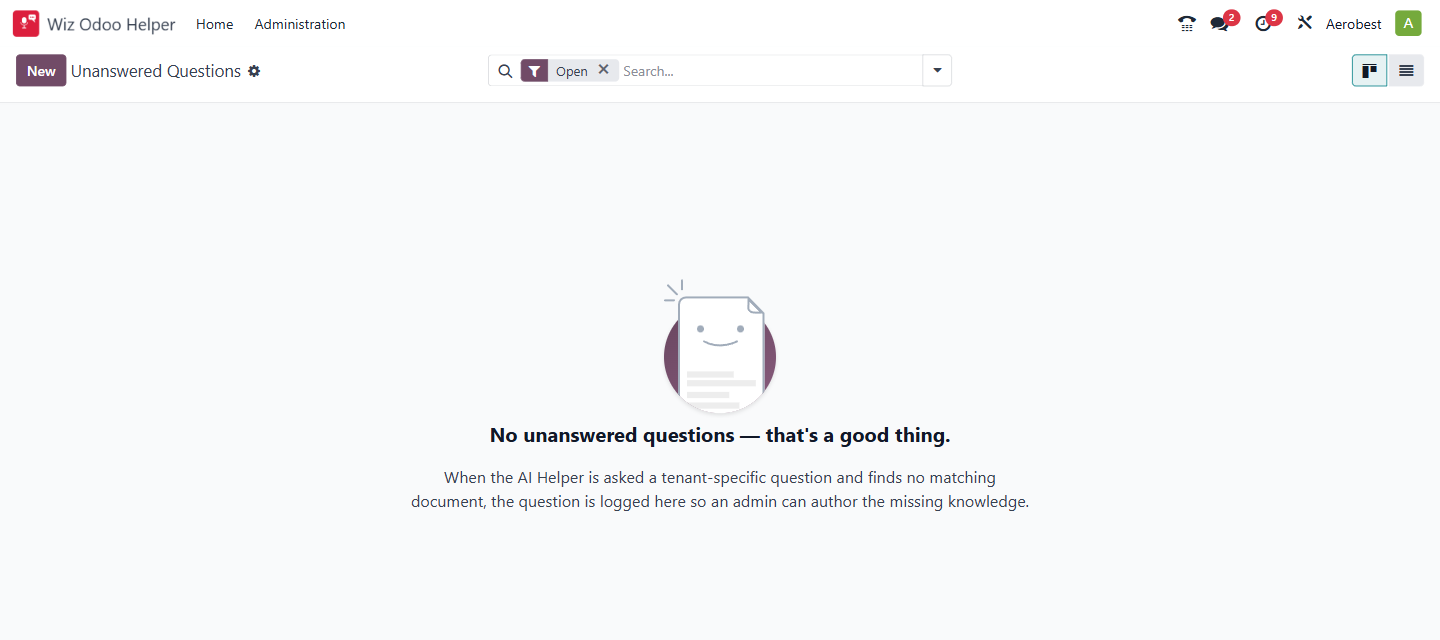
1. What is this screen for?
When the Helper is asked a question about your specific setup and finds no matching document, the question is logged here so an administrator can author the missing knowledge.
2. Who uses it?
Administrators at your organization.
3. What do you actually do here?
When the list is empty, the screen shows: "No unanswered questions — that's a good thing." with the explanation: "When the AI Helper is asked a tenant-specific question and finds no matching document, the question is logged here so an admin can author the missing knowledge."
When questions exist, click into any one to open the detail view:
Question Detail View
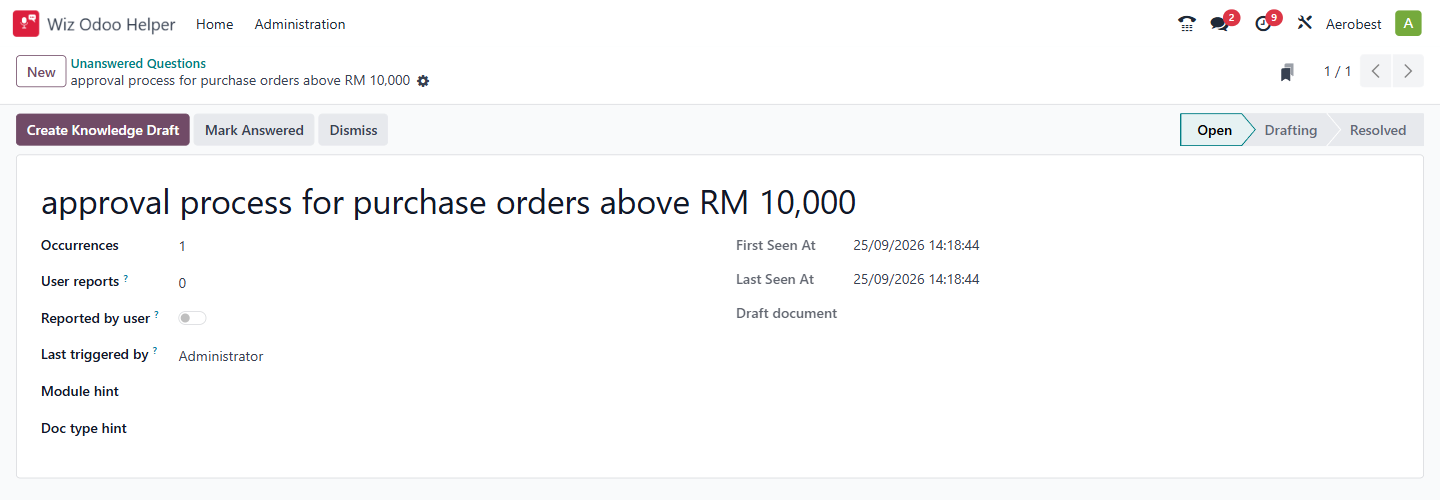
The detail view shows:
Question title — the question the user asked, displayed as the heading.
Occurrences — how many times this question has been asked.
User reports — how many times users reported that the Helper could not answer. Users report questions from within the Helper conversation itself, not from the Odoo backend.
Reported by user — a toggle indicating whether a user explicitly told the Helper it could not answer (vs. the system logging the miss automatically).
Last triggered by — which user last asked this question.
First Seen At — when the question was first asked.
Last Seen At — when it was most recently asked.
Module hint — filled in by the Helper when it can tell which module the question is about, otherwise left blank. An administrator can correct it afterwards.
Doc type hint — filled in by the Helper when it can tell what kind of document would answer it, otherwise left blank. An administrator can correct it afterwards.
Draft document — a link to the draft document if one has been created.
The status pipeline in the top right tracks each question through three stages: Open → Drafting → Resolved.
There are three action buttons:
Create Knowledge Draft (purple) — creates a new draft document in Odoo Documents, inside the Helper’s tenant folder (shown under Knowledge Folders on the Configuration screen). The question moves to "Drafting" status and the Draft document field links to the new draft.
Mark Answered — moves the question to "Resolved" without creating a document. Use this when the question is already covered by an existing document and the Helper simply missed it.
Dismiss — sets the question’s status to Dismissed. Nothing is deleted. Use this for irrelevant or nonsensical questions.
The screen supports both a Kanban view and a list view (toggle icons in the top right of the list view). The kanban view groups questions by status. It opens filtered to Open questions; remove that filter to see Drafting, Resolved and Dismissed ones.
4. What do you do when it looks wrong or empty?
List is empty: There are no open questions. Questions already drafted, resolved or dismissed are hidden by the Open filter.
Same question shows high Occurrences: Your staff keep asking something the Helper can't answer. This is a priority — click Create Knowledge Draft and write the missing content.
Questions appear that aren't about your setup: Some questions may be general Odoo questions rather than tenant-specific. Use Dismiss for these — the Helper handles general Odoo knowledge separately.
You created a draft but the question stays in "Drafting": The draft document needs to be completed and published. Once published, the Helper will find it the next time the question is asked, and publishing the draft moves the question to Resolved automatically.
You resolved a question but the Helper still misses it: The question does not reopen, but its Occurrences and Last Seen At keep rising; remove the Open filter to spot it. Unlike the AI Agent Client’s knowledge base, the Helper does not pre-index documents — it reads them at the moment a question is asked. If a published document is not being picked up, the wording may not match what users are asking. Review the document’s title and content to ensure they use the same terms your staff use.