The Odoo Helper
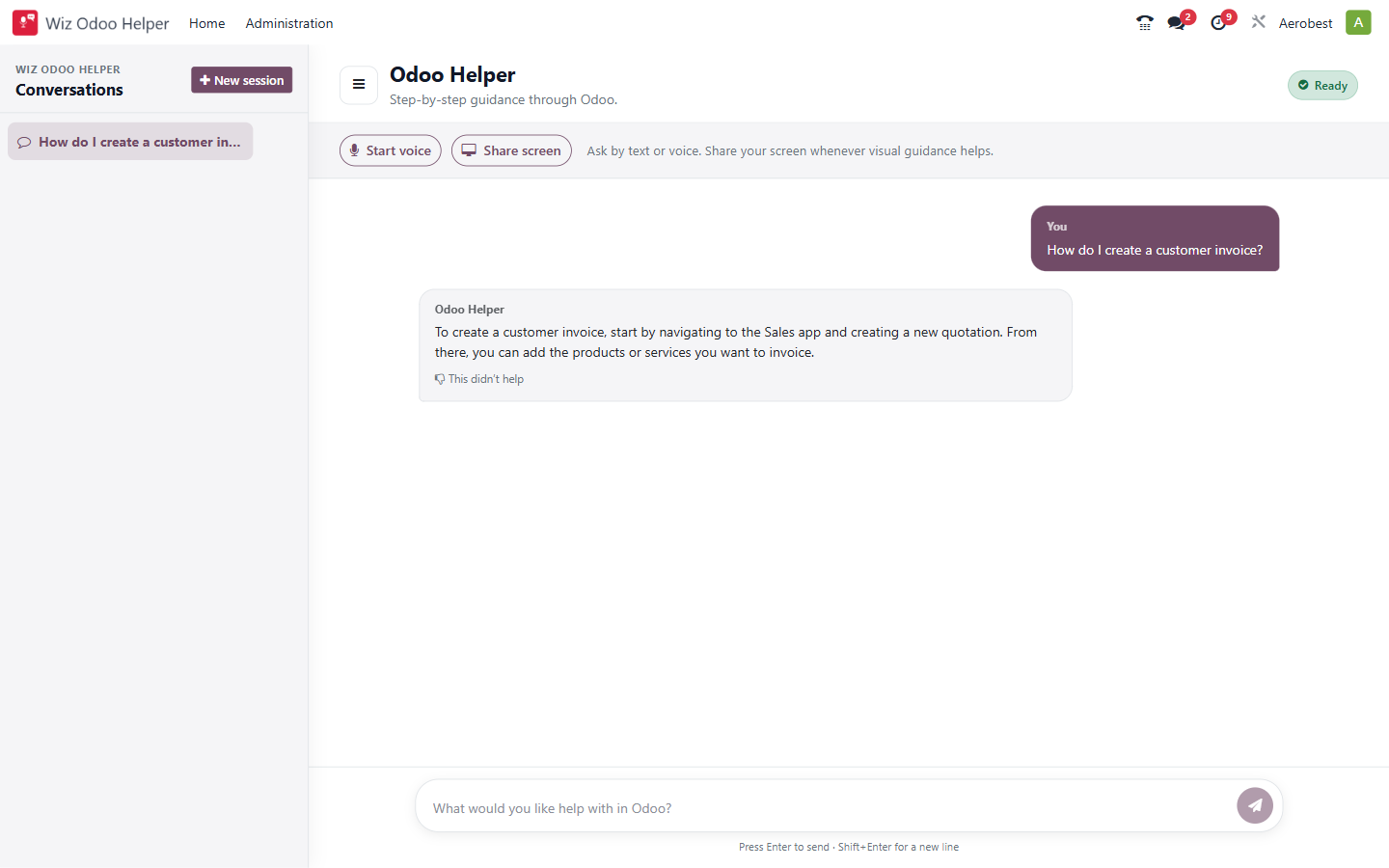
1. What is this screen for?
This is the Helper itself — a full-screen assistant that walks a user through tasks in Odoo with step-by-step guidance.
2. Who uses it?
Any employee who has been given the Wiz Odoo Helper User role.
3. What do you actually do here?
The screen has three areas:
Left sidebar — Conversations
Past conversations are listed here. Click any conversation to reopen it. Click + New session to start a fresh conversation.
The Helper has two kinds of memory, and they work differently:
Active memory (what the Helper actually knows) — The AI replays the last 8 exchanges when you continue a conversation. This memory expires 24 hours after the last message. So if you leave for lunch and come back, it remembers. If you leave for the weekend, it does not.
Visible transcript (what you can see) — The conversation transcript stays in the sidebar for 90 days (the default retention period, configurable under Administration → Configuration; set to 0 to keep transcripts indefinitely). After 24 hours the conversation is still listed and you can read it, but the Helper knows nothing about its content — it is starting fresh.
This distinction matters: a user who reopens a Monday conversation on Wednesday will see the full transcript in the sidebar but the Helper will not know what they mean if they say "as we discussed." The Helper is not ignoring them — it genuinely does not have the earlier context.
Top bar — Input options
Start voice — ask your question by speaking instead of typing.
Share screen — share your current screen so the Helper can see the exact Odoo page you're on and guide you visually.
Screen sharing only ever happens when the user chooses it. The Helper never accesses your screen without your explicit action.
Starting a screen-share session
Click the Share screen button at the top of the chat. Your browser will ask permission to share your screen — grant it. The Helper can now see the Odoo page you are on and give you visual, step-by-step guidance specific to what is on your screen. To stop sharing, click Stop sharing, or use your browser's own Stop sharing control.
What screen sharing needs, and what it captures
Screen sharing uses your browser’s own sharing feature, so there is nothing to install and no Wiz Asia permission to grant. Your browser asks you what to share and nothing is shared until you choose it. The Helper cannot start sharing on its own.
• Any current desktop browser can do this — Chrome, Edge, Firefox and Safari all support it. On an older browser, or an address that is not https, the Share screen button does not appear, and the rest of the Helper carries on working normally.
• The site must be on HTTPS, which your Odoo already is.
• In Chrome and Edge you are offered your browser tabs first, because that is what the Helper is guiding you through, and the Helper’s own tab is left out, so you cannot share the Helper with itself.
• Screen sharing never captures sound, only the picture. Voice input is separate; see What leaves your database below.
• You can stop at any time using your browser’s own “Stop sharing” control.
The helper text reads: "Ask by text or voice. Share your screen whenever visual guidance helps."
What leaves your database when you use the Helper
- Your voice. When you use Start voice, your microphone audio streams live to the Wiz Asia AI Gateway and, through OpenRouter, to a speech-to-text model, currently OpenAI's Whisper. It is transcribed and then discarded. The audio is never stored.
- Your screen. While sharing is on, screen frames stream live to the gateway and, through OpenRouter, to the language model that reads them, currently Google's Gemini. They are never stored as images or video.
- Your questions and the answers. Your transcribed question, what is on your screen and your Helper knowledge go to the language model, currently Google's Gemini. With every question it receives the titles and summaries of your published Helper documents, the full text of your hand-written ones (up to 8,000 characters in all) and the names and short descriptions of your installed apps; when it searches your documents, it also receives the passages that match. Spoken replies are produced by a text-to-speech model, also currently Google's Gemini. Where Vertex AI retrieval is enabled, Google may also process the text of your question.
- The Helper's active memory. The recent exchanges it replays are held on Wiz Asia's gateway and expire 24 hours after your last message.
- Your transcripts are stored as text in your own Odoo database. You can read only your own. Helper Administrators can read everyone's; an Odoo Settings administrator can also edit or delete them. Wiz Asia's billing record of each answered question also keeps the question and answer text, until you ask Wiz Asia to erase it.
So in a normal session your microphone audio reaches OpenAI, and your screen content and Helper knowledge reach Google. Wiz Asia may change the model in any of these positions, and the provider receiving that content changes with it; Helper Administrators can see which model answered each question under Administration → Usage & Billing. No provider receives your stored Odoo records, only the transcript, screen content and Helper knowledge described above. The full disclosure is DATA_PRIVACY.md, which ships inside the Wiz Odoo Helper module.
Status pill (top right)
A coloured badge shows the connection status:
Ready (green) — the Helper is connected and available.
Connecting — the Helper is establishing a connection. Wait a moment.
Preparing guidance — the Helper's answer is coming in.
Connection issue — the connection has failed. Click Retry connection, or refresh the page. If it persists, check with your administrator.
Chat area
Type your question in the text field at the bottom and press Enter to send (Shift+Enter for a new line). The Helper responds with Odoo-specific guidance — it will not answer questions outside its scope.
Messages from you appear on the right (dark background). Messages from the Helper appear on the left (light background).
Under the latest answer, This didn’t help reports that the Helper missed. The question is logged for your administrators under Administration → Unanswered Questions.
Checking your usage and topping up
An AI Agent Administrator can see the remaining balance and pricing tier under AI Agent Client → Usage & Billing → Wallet & Plan, and click Topup to add tokens.
4. What do you do when it looks wrong or empty?
Status pill shows "Connection issue": Click Retry connection, or refresh the page. If the issue persists, ask your administrator to check the connection under Administration → Configuration.
Helper doesn't answer or responds very slowly: Until the first words of the answer arrive, the status pill stays on Ready; complex questions take longer.
Helper says it can't help with your question: The Helper only answers questions related to Odoo. If you are asking about your company's specific setup and it can't answer, your question may be logged under Administration → Unanswered Questions for an administrator to address.
Previous conversations are missing from the sidebar: Conversations older than the retention period (default 90 days) are archived and no longer appear in the sidebar. They are kept, not deleted, and an Odoo administrator can restore them. A conversation you delete from the Helper is gone for good. The retention period is configured under Administration → Configuration.
Screen sharing isn't working: Use a current browser, check that your Odoo address starts with https://, and accept your browser's share prompt. If you dismissed the prompt, click Share screen again.
Helper forgot your previous conversation: If more than 24 hours have passed since the last message, this is expected — the Helper's active memory covers the last 8 exchanges and expires after 24 hours. The conversation transcript is still visible in the sidebar for 90 days, but the Helper cannot recall its content. Start a new session or re-state the context at the beginning of your message.